CanvasControl
Free-form drawing surface that exposes CharacterBuffer drawing primitives through a local-coordinate API. Supports both retained-mode (async) and immediate-mode (event-driven) painting, or a combination of both.
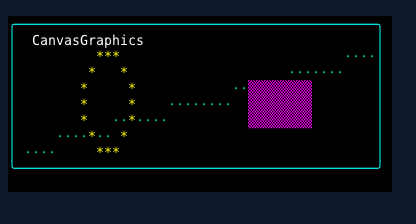
Overview#
CanvasControl gives you a pixel-level (cell-level) drawing canvas inside any window. It owns an internal CharacterBuffer that persists drawn content across render cycles. You can draw to this buffer at any time from any thread using BeginPaint()/EndPaint(), or subscribe to the Paint event to redraw each frame. Both approaches can be combined: the internal buffer is composited first, then the Paint event fires for overlay drawing on top.
The CanvasGraphics context returned by BeginPaint() and passed through the Paint event provides 30+ drawing methods — text, lines, boxes, circles, ellipses, arcs, polygons, gradients, patterns — all operating in canvas-local coordinates (0,0 = top-left of the canvas).
Properties#
| Property | Type | Default | Description |
|---|---|---|---|
CanvasWidth |
int |
40 |
Logical canvas width in characters. Setting recreates the internal buffer. |
CanvasHeight |
int |
20 |
Logical canvas height in characters. Setting recreates the internal buffer. |
AutoSize |
bool |
false |
When true, the internal buffer automatically resizes to match the layout bounds assigned by the parent container. Enable with Stretch/Fill alignment. |
AutoClear |
bool |
false |
When true, the internal buffer is cleared after compositing each frame, so the Paint event redraws from scratch (immediate mode). |
BackgroundColor |
Color |
Container or Black | Background color for the canvas. |
ForegroundColor |
Color |
Container or White | Default foreground color. |
IsEnabled |
bool |
true |
Whether the control accepts input. |
HasFocus |
bool |
false |
Whether the control has keyboard focus. |
Margin |
Margin |
0,0,0,0 |
Layout margin around the canvas. |
HorizontalAlignment |
HorizontalAlignment |
Left |
Horizontal alignment. Use Stretch with AutoSize for responsive sizing. |
VerticalAlignment |
VerticalAlignment |
Top |
Vertical alignment. Use Fill with AutoSize for responsive sizing. |
Events#
| Event | Args | Description |
|---|---|---|
Paint |
CanvasPaintEventArgs |
Fires during each render cycle after compositing. Graphics draws to the window buffer. |
CanvasMouseClick |
CanvasMouseEventArgs |
Left-click with canvas-local coordinates. |
CanvasMouseRightClick |
CanvasMouseEventArgs |
Right-click with canvas-local coordinates. |
CanvasMouseMove |
CanvasMouseEventArgs |
Mouse move with canvas-local coordinates. |
CanvasKeyPressed |
ConsoleKeyInfo |
Key press while the canvas has focus. |
GotFocus |
EventArgs |
The canvas received keyboard focus. |
LostFocus |
EventArgs |
The canvas lost keyboard focus. |
Event Args#
CanvasPaintEventArgs:
| Property | Type | Description |
|---|---|---|
Graphics |
CanvasGraphics |
Drawing context wrapping the window buffer with offset translation. |
CanvasWidth |
int |
Current canvas width. |
CanvasHeight |
int |
Current canvas height. |
CanvasMouseEventArgs:
| Property | Type | Description |
|---|---|---|
CanvasX |
int |
X coordinate in canvas-local space (0-based). |
CanvasY |
int |
Y coordinate in canvas-local space (0-based). |
OriginalArgs |
MouseEventArgs |
Original mouse event for access to flags and absolute position. |
Two Painting Modes#
Retained Mode (BeginPaint/EndPaint)#
Content drawn via BeginPaint()/EndPaint() persists in the internal buffer across render cycles. Draw whenever you want, from any thread.
var g = canvas.BeginPaint();
try
{
    g.Clear(Color.DarkBlue);
    g.DrawBox(0, 0, 60, 20, BoxChars.Single, Color.White, Color.DarkBlue);
    g.WriteStringCentered(10, "Hello Canvas!", Color.White, Color.DarkBlue);
}
finally
{
    canvas.EndPaint(); // releases lock, triggers repaint
}
Immediate Mode (Paint Event)#
Subscribe to the Paint event and set AutoClear = true. The canvas clears before each frame, so you redraw from scratch.
var canvas = new CanvasControl { AutoClear = true };
canvas.Paint += (sender, e) =>
{
    var g = e.Graphics;
    g.DrawCircle(30, 10, 8, '*', Color.Yellow, Color.DarkBlue);
};
Combined: Retained Background + Event Overlay#
The internal buffer is composited first, then the Paint event fires for drawing on top.
// Static background drawn once
var g = canvas.BeginPaint();
g.GradientFillRect(0, 0, 60, 20, Color.DarkBlue, Color.Black, horizontal: false);
canvas.EndPaint();

// Dynamic overlay redrawn each frame
canvas.Paint += (sender, e) =>
{
    e.Graphics.WriteStringCentered(10, $"Time: {DateTime.Now:HH:mm:ss}",
        Color.White, Color.DarkBlue);
};
Creating a Canvas#
Fixed Size#
var canvas = new CanvasControl(80, 24);
window.AddControl(canvas);
Auto-Sizing (Stretch/Fill)#
var canvas = new CanvasControl
{
    HorizontalAlignment = HorizontalAlignment.Stretch,
    VerticalAlignment = VerticalAlignment.Fill,
    AutoSize = true
};
window.AddControl(canvas);
The canvas will resize its internal buffer to match the space assigned by the parent container.
Using WindowBuilder#
var canvas = new CanvasControl
{
    HorizontalAlignment = HorizontalAlignment.Stretch,
    VerticalAlignment = VerticalAlignment.Fill,
    AutoSize = true,
    AutoClear = true
};

canvas.Paint += (sender, e) =>
{
    // Draw each frame
};

var window = new WindowBuilder(ws)
    .WithTitle("My Canvas")
    .WithSize(60, 25)
    .Centered()
    .Resizable(true)
    .AddControl(canvas)
    .Build();

ws.AddWindow(window);
CanvasGraphics API#
CanvasGraphics wraps a CharacterBuffer and translates all coordinates from canvas-local (0,0) to absolute buffer position. You get a CanvasGraphics from BeginPaint() or from CanvasPaintEventArgs.Graphics.
Core#
| Method | Description |
|---|---|
SetNarrowCell(x, y, ch, fg, bg) |
Set a single narrow (width-1) cell. |
SetCell(x, y, cell) |
Write a whole cell, keeping its flags. |
GetCell(x, y) |
Read a cell from the buffer. |
Clear() |
Clear with the canvas background color. |
Clear(bg) |
Clear with a specific color. |
FillRect(x, y, w, h, ch, fg, bg) |
Fill a rectangle with a character and colors. |
FillRect(x, y, w, h, bg) |
Fill a rectangle with a background color. |
SetCell or SetNarrowCell? SetNarrowCell takes a char and clears every
flag: use it for literal narrow characters — borders, padding, fill. SetCell
takes a whole Cell and preserves the wide-character continuation flag, combining
marks and decorations: use it for cells that came from MarkupParser.Parse or from
another buffer.
Writing a parsed cell through SetNarrowCell loses that information, and the
damage is silent — a wide glyph renders in one column and shifts everything after
it, an accent vanishes from its letter. Drawing text yourself:
var cells = MarkupParser.Parse("[bold]漢字[/] ok", fg, bg);
for (int i = 0; i < cells.Count; i++)
    g.SetCell(x + i, y, cells[i]);     // cells.Count is already in display columns
Text#
| Method | Description |
|---|---|
WriteString(x, y, text, fg, bg) |
Write text at a position. |
WriteStringCentered(y, text, fg, bg) |
Write text centered horizontally. |
WriteStringRight(y, text, fg, bg) |
Write text right-aligned. |
WriteStringInBox(x, y, w, h, text, fg, bg) |
Write text centered in a box region. |
WriteWrappedText(x, y, w, text, fg, bg) |
Write text with word wrapping. |
Lines and Boxes#
| Method | Description |
|---|---|
DrawLine(x0, y0, x1, y1, ch, fg, bg) |
Draw a line between two points (Bresenham). |
DrawHorizontalLine(x, y, length, ch, fg, bg) |
Draw a horizontal line. |
DrawVerticalLine(x, y, length, ch, fg, bg) |
Draw a vertical line. |
DrawBox(x, y, w, h, boxChars, fg, bg) |
Draw a box with border characters. |
Circles and Ellipses#
| Method | Description |
|---|---|
DrawCircle(cx, cy, r, ch, fg, bg) |
Draw a circle outline. |
FillCircle(cx, cy, r, ch, fg, bg) |
Draw a filled circle. |
DrawEllipse(cx, cy, rx, ry, ch, fg, bg) |
Draw an ellipse outline. |
FillEllipse(cx, cy, rx, ry, ch, fg, bg) |
Draw a filled ellipse. |
DrawArc(cx, cy, r, startAngle, endAngle, ch, fg, bg) |
Draw a circular arc. |
Polygons#
| Method | Description |
|---|---|
DrawTriangle(points, ch, fg, bg) |
Draw a triangle outline from 3 points. |
FillTriangle(points, ch, fg, bg) |
Draw a filled triangle from 3 points. |
DrawPolygon(points, ch, fg, bg) |
Draw a polygon outline from N points. |
FillPolygon(points, ch, fg, bg) |
Draw a filled polygon from N points. |
Gradients and Patterns#
| Method | Description |
|---|---|
GradientFillHorizontal(x, y, w, h, left, right) |
Horizontal gradient fill. |
GradientFillVertical(x, y, w, h, top, bottom) |
Vertical gradient fill. |
GradientFillRect(x, y, w, h, start, end, horizontal) |
Gradient fill in either direction. |
PatternFill(x, y, w, h, pattern, fg, bg) |
Fill a rectangle with a repeating text pattern. |
CheckerFill(x, y, w, h, ch1, ch2, fg1, bg1, fg2, bg2) |
Fill with alternating checker cells. |
StippleFill(x, y, w, h, density, ch, fg, bg) |
Fill with random stipple pattern at a given density. |
PixelSurface: drawing in pixels#
Everything above draws in cells, and every shape takes a character. That is the right model for anything made of text, and the wrong one for a picture: the smallest thing you can draw is one cell, and cells are about twice as tall as they are wide, so circles come out as ovals.
PixelSurface is the other model. It treats each cell as two stacked pixels and
paints it with ▀ — foreground the top pixel, background the bottom. The pixels
come out nearly square, the vertical resolution doubles, and you draw in colors
rather than characters.
The canvas can own one for you — lazily, so a canvas that only draws text pays nothing:
using SharpConsoleUI.Drawing;

canvas.Paint += (_, e) =>
{
    var px = canvas.Pixels;        // created on first use, always the right size
    px.Fill(background);

    px.FillCircle(20, 14, 6, Color.Red);
    px.Glow(20, 14, 12, Color.Red, 0.4);
    px.TextCentered(2, "[bold]Signal[/]", Color.White);

    canvas.PresentPixels(background);
};
canvas.Pixels resizes itself to the canvas on every read, which is the step easiest to
forget and the one whose units are easiest to get wrong — EnsureSize takes cells, and
the surface is twice as tall in pixels.
That is a convenience, not the only way. PixelSurface is an ordinary type: allocate your
own, size it to a region rather than the whole canvas, keep several, and present any of them
into any canvas:
private readonly PixelSurface _surface = new();

void Render(CanvasGraphics g)
{
    _surface.EnsureSize(g.Width, g.Height);   // in CELLS; the surface is 2x as tall
    _surface.Fill(background);
    _surface.FillCircle(20, 14, 6, Color.Red);
    _surface.Present(g, background);
}
Both example games do exactly that, because one of them presents with a screen-shake offset.
Use it for charts and sparklines at double detail, heat maps, waveforms, images,
gauges, and games. Use CanvasGraphics for anything whose content is text —
labels, boxes, tables, diagrams made of box-drawing characters.
Surface API#
| Method | Description |
|---|---|
EnsureSize(columns, rows) |
Match the canvas size, in cells. Cheap when unchanged. |
Width / Height / Rows |
Size in pixels, and height in canvas rows. |
Set(x, y, c) / Get(x, y) |
Write and read one pixel. |
Blend(x, y, c, alpha) |
Blend a color over a pixel. |
Add(x, y, c, amount) |
Add light to a pixel. Clamps at white. |
Fill(c) |
Fill every pixel. |
FillRect(x, y, w, h, c) / BlendRect(...) |
Rectangles, solid or blended. |
FillCircle(cx, cy, r, c) |
Circle with a softened edge. |
Glow(cx, cy, r, c, amount) |
Soft halo of light. |
DrawLine(x0, y0, x1, y1, c) |
Line. |
Dim(amount) / Desaturate(amount) |
Darken, or pull towards grey. |
Present(g, voidColor) |
Composite into a canvas. |
Present(g, offsetX, offsetY, voidColor) |
The same, displaced — see below. |
On the control: Pixels (lazy, auto-sized), HasPixelSurface (asks without allocating),
PresentPixels(voidColor) and PresentPixels(offsetX, offsetY, voidColor).
| Lerp(a, b, t) / Scale(c, k) (static) | Color helpers. |
Text over pixels#
Text and TextCentered float glyphs above the pixels. Without an explicit
background a glyph takes the average of the two pixels beneath it, so lettering
sits in the picture instead of punching a hole in it.
_surface.Text(4, 3, "[yellow]42 ms[/]", Color.White);        // pixels show through
_surface.Text(4, 5, "label", Color.White, Color.Black);      // solid background
int width = _surface.TextCentered(0, "漢字 ok", Color.White); // returns display columns
Text goes through the markup parser, so tags work and so does Unicode: a wide
glyph takes the two columns it needs, a combining mark stays with its letter, and
TextCentered measures what will be drawn rather than the length of the markup
string. ClearText() wipes the text layer and leaves the pixels alone.
Shapes: PixelMask#
A PixelMask is an immutable 1-bit shape written as text, where # is a lit
pixel. Rows may be ragged.
static readonly PixelMask Arrow = new(
    "..#..",
    ".###.",
    "#####");

_surface.Draw(Arrow, x, y, Color.Yellow);
_surface.Draw(Arrow, x, y, Color.Yellow, rowShade: 0.5);  // darker towards the bottom
_surface.GlowMask(Arrow, x, y, Color.Yellow, 0.3);        // halo around it
CloneMask() returns a mutable copy, for a shape that erodes as it is used.
Screen shake#
The second Present overload displaces where each cell reads from, so nothing is
moved or resampled and pixels shifted off the surface come back as voidColor:
_surface.Present(g, shakeX, shakeY, background);
Because this happens during compositing, only the canvas shakes — a HUD beside it
stays still. Contrast a PostBufferPaint effect, which covers the whole window.
Keyboard Support#
All key events are forwarded to the CanvasKeyPressed event when the canvas has focus.
| Key | Behavior |
|---|---|
| Any key | Fires CanvasKeyPressed with the ConsoleKeyInfo |
| Tab | Moves focus to next control (default window behavior) |
Mouse Support#
| Event | Behavior |
|---|---|
| Left button down | Fires CanvasMouseDown, focuses the canvas |
| Left button up | Fires CanvasMouseUp |
| Left click | Fires CanvasMouseClick, focuses the canvas |
| Right click | Fires CanvasMouseRightClick |
| Mouse move | Fires CanvasMouseMove |
All carry canvas-local coordinates, translated from absolute screen position (0,0 = top-left of the drawing area, excluding margins).
Press, or click? A click is reported on release, which is the right default
for a button and late for anything that should respond the moment the button goes
down — a game's fire control, the start of a drag, the first point of a brush
stroke. Use CanvasMouseDown for those.
A full press and release raises CanvasMouseDown, then CanvasMouseUp, then
CanvasMouseClick. Handle one or the other, not both, unless you want the action
twice. CanvasMouseDown also fires for the second and third press of a fast run:
a multi-click carries its press as well as the derived gesture, so rapid clicking
never drops one. Read CanvasMouseEventArgs.OriginalArgs if you need to tell them
apart.
Press and release are only consumed when something is listening, so a canvas that handles just clicks still lets a press through to drag its window.
Thread Safety#
BeginPaint() acquires a monitor lock on the internal buffer. EndPaint() releases it and invalidates the window. This makes it safe to draw from background threads, timers, or async loops.
// Safe from any thread
Task.Run(async () =>
{
    while (!ct.IsCancellationRequested)
    {
        var g = canvas.BeginPaint();
        // draw...
        canvas.EndPaint();
        await Task.Delay(16, ct); // ~60fps
    }
});
The Paint event fires within the render lock, so no additional synchronization is needed there.
Examples#
Interactive Drawing#
canvas.CanvasMouseClick += (sender, e) =>
{
    var g = canvas.BeginPaint();
    g.FillCircle(e.CanvasX, e.CanvasY, 2, '*', Color.Red, Color.Black);
    canvas.EndPaint();
};
Animated Background with Async Thread#
var canvas = new CanvasControl
{
    HorizontalAlignment = HorizontalAlignment.Stretch,
    VerticalAlignment = VerticalAlignment.Fill,
    AutoSize = true
};

var window = new WindowBuilder(ws)
    .WithTitle("Animation")
    .WithSize(60, 25)
    .Centered()
    .WithAsyncWindowThread(async (win, ct) =>
    {
        int frame = 0;
        while (!ct.IsCancellationRequested)
        {
            var g = canvas.BeginPaint();
            g.Clear(Color.Black);
            int cx = canvas.CanvasWidth / 2;
            int cy = canvas.CanvasHeight / 2;
            int r = (int)(Math.Sin(frame * 0.05) * 5 + 7);
            g.FillCircle(cx, cy, r, '*', Color.Cyan, Color.Black);
            canvas.EndPaint();
            frame++;
            await Task.Delay(33, ct);
        }
    })
    .AddControl(canvas)
    .Build();
Geometry Showcase#
canvas.Paint += (sender, e) =>
{
    var g = e.Graphics;
    int w = e.CanvasWidth, h = e.CanvasHeight;

    // Gradient background
    g.GradientFillRect(0, 0, w, h, Color.DarkBlue, Color.Black, horizontal: false);

    // Centered circle
    g.DrawCircle(w / 2, h / 2, Math.Min(w, h) / 4, 'o', Color.Cyan, Color.DarkBlue);

    // Box with text
    g.DrawBox(2, 2, 20, 5, BoxChars.Double, Color.Yellow, Color.DarkBlue);
    g.WriteStringInBox(2, 2, 20, 5, "Hello!", Color.White, Color.DarkBlue);

    // Polygon
    var points = new (int X, int Y)[]
    {
        (w - 15, 3), (w - 5, 3), (w - 10, 8)
    };
    g.FillTriangle(points, '#', Color.Green, Color.DarkBlue);
};
Best Practices#
- Use
AutoSize = truewithStretch/Fillwhen the canvas should adapt to the window size. ReadCanvasWidth/CanvasHeighteach frame for proportional drawing. - Always pair
BeginPaint()withEndPaint()in a try/finally block to avoid deadlocks. - Prefer retained mode for content that changes infrequently (backgrounds, static shapes). Use the
Paintevent for content that changes every frame (animations, overlays). - Read dimensions each frame in the
Paintevent —e.CanvasWidthande.CanvasHeightmay change if the window is resized. - Don't call
BeginPaint()inside aPainthandler — the render lock is already held, and you would deadlock.
CanvasControl vs. Compositor Effects#
| Feature | CanvasControl | Compositor Effects |
|---|---|---|
| Scope | Single control within a window | Entire window buffer |
| Coordinates | Canvas-local (0,0 = top-left of control) | Absolute buffer coordinates |
| Drawing API | CanvasGraphics (30+ methods) |
Raw CharacterBuffer cell access |
| Persistence | Internal buffer retains content | No persistence (runs each frame) |
| Use case | Custom drawing surfaces, games, visualizations | Post-processing effects, transitions, overlays |
| Thread model | BeginPaint()/EndPaint() from any thread |
Runs in render lock via event |
Use CanvasControl when you need a self-contained drawing area within your window layout. Use Compositor Effects when you need to manipulate the entire rendered window buffer (blur, fade, color grading).
See Also#
- Compositor Effects — Window-level buffer manipulation
- DOM Layout System — How controls are measured and arranged
- Rendering Pipeline — Understanding the rendering flow
- Controls Reference — Complete list of available controls