ChartControl
ChartControl plots several series against two axes, with ticks, labels,
gridlines, a legend and optional interaction. It is the general chart control:
line, area, bar and scatter are plot types on one shared frame rather than
separate controls, and the type can be set per series, so a combo chart is a
configuration rather than a special case.
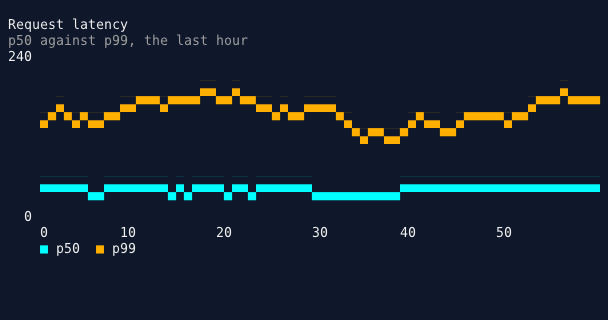
The plot area is painted as pixels; every piece of chrome around it — axis labels, legend, title — is normal cell text, because those must align to cell columns and stay readable.
Quick start#
var chart = Controls.Chart()
    .WithTitle("Throughput")
    .WithPlotType(ChartPlotType.Area)
    .WithYRange(0, 100)
    .WithGridlines()
    .AddSeries("down", Color.Green, downSamples)
    .AddSeries("up", Color.Cyan1, upSamples)
    .Build();

window.AddControl(chart);
Or directly:
var chart = new ChartControl { Title = "Throughput", PlotType = ChartPlotType.Line };
chart.YAxis.Min = 0;
chart.YAxis.Max = 100;
chart.AddSeries("requests", Color.Green).SetValues(samples);
Properties#
| Property | Type | Default | Description |
|---|---|---|---|
PlotType |
ChartPlotType |
Line |
Line, Area, Bar, Scatter, Heatmap or Gauge. |
Orientation |
ChartOrientation |
Vertical |
Which way bars run. |
Sizing |
ChartSizing |
Stretch |
Stretch to the width, or a fixed step per point. |
StepWidth |
int |
2 |
Cells per point in FixedStep mode. |
ShowGaugeLabel |
bool |
true |
Whether a gauge names its series. |
ShowGaugeValue |
bool |
true |
Whether a gauge prints its value. |
Subtitle |
string? |
null |
A second line under the title. |
TitleAlignment |
ChartTitleAlignment |
Left |
Where the title and subtitle sit. |
BorderStyle |
BorderStyle |
None |
A border around the chart. |
Stacked |
bool |
false |
Each series sits on the sum of those before it. |
SecondaryYAxis |
ChartAxis |
— | A second scale, labeled on the right. |
ShowHighLowLabels |
bool |
false |
Label each series' peak and trough. |
EmptyText |
string? |
null |
Message shown when there is nothing to plot. |
RenderMode |
ChartRenderMode |
Pixel |
How the plot is rasterised. |
XAxis, YAxis |
ChartAxis |
— | The two axes. |
Series |
IReadOnlyList<ChartSeries> |
empty | The series, in draw order. |
Title |
string? |
null |
A heading above the plot. |
ShowLegend |
bool |
false |
Whether the legend is drawn. |
LegendPosition |
ChartLegendPosition |
Bottom |
Where it sits. |
ShowAxisLines |
bool |
false |
Rules along the left and bottom edges. |
SplitView |
bool |
false |
Splits the plot about its center. |
PlotBackground |
Color? |
null |
Fill behind the plot; Transparent shows what is behind. |
PlotHeight |
int? |
null |
Fixed plot height; null fills the container. |
EnableHover |
bool |
false |
Crosshair and readout on the nearest point. |
EnableSelection |
bool |
false |
Click and keyboard point selection. |
EnableZoom |
bool |
false |
Drag, wheel and keyboard zoom. |
Events#
| Event | Raised when |
|---|---|
SelectionChanged |
The selected point changes, including when cleared. |
PointActivated |
Enter is pressed on the selected point. |
ViewportChanged |
The visible X range changes. |
Data#
A series holds real points rather than bare values, so X carries information:
series.SetValues(new[] { 10d, 20, 30 });                  // evenly spaced
series.SetPoints(new[] { new ChartPoint(1.5, 20) });      // explicit X and Y
series.SetCategories(new[] { ("cpu", 40d), ("gpu", 70d) });
series.SetTimeSeries(new[] { (DateTime.Now, 42d) });
series.AddPoint(new ChartPoint(x, y));                    // streaming
series.TrimTo(500);                                       // cap a live feed
Non-finite samples are dropped where they enter. A metrics feed eventually
sends a NaN, and one reaching the axis bounds would blank the whole chart.
Axes#
Ticks use "nice numbers" — 1, 2 or 5 times a power of ten — because those are the values a reader can divide at a glance. The axis kind decides how they are labeled:
chart.XAxis.Kind = ChartAxisKind.Time;
chart.XAxis.LabelFormat = "HH:mm";

chart.XAxis.Kind = ChartAxisKind.Category;
chart.XAxis.SetCategories(new[] { "cpu", "gpu", "ram" });

chart.YAxis.LabelFormatter = v => $"{v:0}%";   // escape hatch
A bar chart forces its Y axis to include zero, because a bar's length is its value: auto-ranging from the data minimum would draw the smallest bar as a sliver and make a tenth of the range look like all of it. Line and scatter keep the tighter range that shows their detail.
Gauges#
With PlotType.Gauge the chart becomes a stack of inline readouts, one row per
series:
var gauges = Controls.Chart().AsGauge().Build();
gauges.YAxis.Min = 0;
gauges.YAxis.Max = 100;
gauges.YAxis.LabelFormatter = v => $"{v:0}%";

foreach (var (name, value) in readings)
{
    var s = gauges.AddSeries(name, Color.Orange1);
    s.Gradient = ColorGradient.Predefined["warm"];
    s.SetValues(new[] { value });
}
A gauge has no vertical dimension to encode anything, so the bar's length is the reading and the gradient along it says where that reading sits on the scale. The gradient is sampled against the axis range, not the bar's own length — sampled along the bar, every reading would finish the same color and the tip would say nothing. A series' last point is the one shown, so a gauge fed a live series always reads current.
The label and the value are each optional, and the value is formatted through
YAxis, so units and percentages need no second concept.
Heatmaps#
Every other plot type answers "what is the value at X". A heatmap answers "what is the value at X,Y", so color stops being decoration and becomes the value channel:
var grid = new double[7, 24];        // [row, column]
// ... fill it ...

var chart = Controls.Chart()
    .WithTitle("Request latency by hour and day")
    .WithYRange(0, 100)
    .WithColorBarLegend()
    .AddHeatmap("latency", grid, ColorGradient.Predefined["spectrum"])
    .Build();
AddHeatmap sets PlotType for you, so the plot type and the grid cannot
disagree. A heatmap needs two things an ordinary series does not: a
gradient, because color is carrying the reading, and a grid, set
through SetGrid and indexed [row, column].
The scale is the Y axis, which is what makes a color mean the same number
on every chart that shares the range — so set YAxis.Min and YAxis.Max
rather than letting two charts scale themselves independently and read as
though they agree.
Pair it with WithColorBarLegend(). A swatch legend shows one color per
series, and a series that spans a whole gradient has no single color to show —
the swatch picks one and implies the rest do not exist. Where color carries the
value, the legend has to be the scale.
Holes are not zeroes#
The second overload builds the grid from scattered readings, sized to the largest coordinate given:
chart = Controls.Chart()
    .WithYRange(0, 100)
    .WithColorBarLegend()
    .AddHeatmap("samples", observed, ColorGradient.Predefined["warm"])
    .Build();   // observed: IEnumerable<(int X, int Y, double Value)>
Cells nobody measured stay as background instead of reading as zero. A missing
measurement and a measurement of zero are different facts, and a heatmap that
paints them the same invents data. Non-finite values in a double[,] become
holes the same way.
A series reports its grid through HasGrid, GridWidth and GridHeight.
Render mode#
A heatmap draws in half blocks whatever RenderMode asks for. Braille resolves
a line finely but can only color one foreground per cell, and a heatmap has
no line and nothing but color to say — so the mode that keeps color wins.
Growing charts#
By default the data spans the plot, rescaling whenever a point is added. For a
live feed that is wrong — the whole trace shifts under the reader every tick.
FixedStep gives each point a fixed number of cells instead, so the plot grows
rightward and earlier samples keep their columns:
chart.Sizing = ChartSizing.FixedStep;
chart.StepWidth = 2;
This is how SparklineControl has always behaved.
Horizontal bars#
Orientation = ChartOrientation.Horizontal runs bars across from a baseline at
the left, with the value on the horizontal axis. Useful when category names are
long enough that vertical labels would collide.
Annotations#
A chart of numbers alone rarely answers the question being asked. "Is this over the limit" needs the limit drawn.
chart.AddReferenceLine(150, Color.Red, "capacity");            // a horizontal limit
chart.AddReferenceLine(deployTime, Color.Cyan1, "deploy",      // a vertical moment
    ChartReferenceAxis.X);

chart.AddValueMarker(90, "target", Color.Magenta1);            // an arrow at a value
chart.ShowHighLowLabels = true;                                // mark peak and trough
Reference lines are drawn under the data, because a limit is context rather than content — the series stays readable where it crosses one. A line outside the visible range is not drawn at all rather than clamped to an edge, which would claim a limit sits at the top of the chart when it is off the scale.
Thresholds#
A series can change color past a boundary, which is usually more legible than a reference line because the data itself carries the warning:
var cpu = chart.AddSeries("cpu", Color.Green);
cpu.SetThresholds(new ChartThreshold(70, Color.Yellow),
                  new ChartThreshold(90, Color.Red));
Applied per point, so a series crossing a limit changes color at the
crossing. A Gradient on the same series wins, since both set is a
contradiction and the gradient is the more specific request.
Stacking#
chart.Stacked = true;
chart.PlotType = ChartPlotType.Area;
Each series sits on the sum of the visible ones before it — how a total divides between its parts. The axis range accounts for the stacked total rather than the tallest single series, hiding one restacks the rest rather than leaving a gap, and stacked areas fill down to the band below rather than to the baseline.
A second scale#
Two series in different units — requests per second against latency — flatten each other onto one scale. A secondary axis gives one its own:
chart.SecondaryYAxis.Min = 0;
chart.SecondaryYAxis.Max = 500;
chart.SecondaryYAxis.Title = "ms";

var latency = chart.AddSeries("latency", Color.Yellow);
latency.UseSecondaryAxis = true;
Labeled on the right, and only drawn when a visible series actually uses it — an empty gutter is not worth the width it costs the plot. Left unpinned it auto-ranges from its own series, not from the ones sharing the plot.
Empty state#
chart.EmptyText = "no samples received yet";
A blank frame is indistinguishable from a broken one. The message appears when no series has points and when every series is hidden, since both look the same to a reader.
Driving series from code#
chart.ToggleSeries("errors");      // what a legend click does
chart.ShowOnlySeries("latency");   // isolate one
chart.ShowAllSeries();
Hiding a series also drops any hover or selection pointing at it, since it is no longer on the chart to point at.
Render modes#
| Mode | Resolution | Overlapping series |
|---|---|---|
Pixel (default) |
2 px/cell | Each cell carries two independent colors |
Braille |
4 px/cell | One color per cell; a crossing loses one series |
Ascii |
1 char/cell | For terminals without the above |
Pixel is the default because a chart routinely shows several series, and that
is exactly where braille loses colors. Measured on two series tracking each
other across a 96-column plot: braille produced 0 cells showing both
colors, pixel mode produced 9. Choose Braille for the smoothest single
line.
Screenshots: the diagnostics
imageverb renders with an embedded font that has no braille glyphs, so aBraillechart photographs blank while being perfectly visible in the terminal and insnapshot. Pass a font that has them when capturing one.
Gradients#
A gradient can run along the plot, by value, or both:
var s = chart.AddSeries("load", Color.White);
s.Gradient = ColorGradient.Predefined["spectrum"];
s.GradientAxis = ChartGradientAxis.Y;   // color tracks magnitude
| Axis | Meaning |
|---|---|
X (default) |
Progression along the series |
Y |
Magnitude — low values take the first stop, high the last |
Both |
A diagonal blend of the two (not a 2-D color field) |
Y normalises against the axis range, not the series' own spread, so
pinning YAxis.Min/Max pins the color scale and "red is over 80" means the
same thing on every chart that shares the axis.
Split view#
chart.SplitView = true;
chart.AddSeries("down", Color.Green).SetValues(downSamples);
chart.AddSeries("up", Color.Cyan1).SetValues(upSamples);
The first visible series grows upward from the center and the second downward — the shape for a pair of opposed quantities such as download against upload. Both halves measure the same positive range growing away from the center, because five megabits down is not minus five megabits, so the Y axis reads the maximum at both ends and zero at the middle.
It is a layout mode rather than a plot type, so lines, areas and bars all split alike. Series past the second are drawn normally across the whole plot.
Interaction#
Every interactive feature is off by default: a chart used as decoration takes neither the mouse nor the keyboard from whatever sits under it.
chart.EnableHover = true;       // crosshair + readout
chart.EnableSelection = true;   // click and keyboard; makes the chart focusable
chart.EnableZoom = true;        // drag a range, wheel, +/-, Escape to reset
| Gesture | Behavior |
|---|---|
| Move over the plot | Crosshair and readout on the nearest point |
| Click a point | Selects it, raises SelectionChanged |
| Click a legend entry | Toggles that series' visibility |
| Click empty plot | Clears the selection |
| Drag across the plot | Zooms to that X range |
| Wheel | Zooms about the cursor |
| Left / Right | Moves the selection, clamping at the ends |
| Home / End | First / last point |
| Enter | Raises PointActivated |
+ / - |
Zooms from the keyboard |
| Escape | Clears the selection, else resets the zoom |
Turning a toggle off also drops the state it owns, so a crosshair, a selection marker or a zoomed range cannot be left stranded on a chart that can no longer be interacted with.
Diagnostics#
DescribeState reports the series count, visible count, point count, plot type,
render mode, split view, the three interaction toggles, and the current hover
and selection — so the diagnostics socket can answer "why is hovering doing
nothing" without reading source.
echo '{"cmd":"tree"}' | socat - UNIX-CONNECT:/tmp/app.sock | tail -1
Note that focusctl addresses a control by Name, so give a chart one if you
intend to drive it over the socket. A drag is three calls — press, drag,
release — because the socket's single drag action never sends a release.
See also#
- LineGraphControl — the older line-only control
- SparklineControl — compact inline trends
- BarGraphControl — a single labeled bar