TableControl
Interactive data grid with virtual data support, sorting, inline editing, and multi-selection.
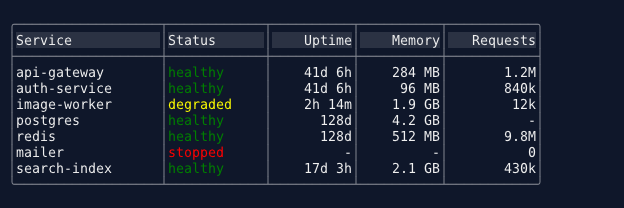
Overview#
TableControl renders tabular data with full keyboard and mouse interaction. It supports two data modes: in-memory rows for simple tables, and ITableDataSource for virtual/lazy data binding that handles millions of rows by querying only visible rows on demand.
By default, ReadOnly = true preserves backward-compatible static table rendering. Set .Interactive() to enable selection, navigation, editing, and all interactive features.
Properties#
| Property | Type | Default | Description |
|---|---|---|---|
ReadOnly |
bool |
true |
When true, table is static display only |
SelectedRowIndex |
int |
-1 |
Index of selected row (-1 = none) |
SelectedColumnIndex |
int |
-1 |
Index of selected column in cell navigation mode |
CellNavigationEnabled |
bool |
false |
Enable Tab/Arrow cell-level navigation |
MultiSelectEnabled |
bool |
false |
Enable Ctrl+Click/Shift+Click multi-selection |
CheckboxMode |
bool |
false |
Show [x]/[ ] checkboxes (implies MultiSelect) |
RightClickExtendsSelection |
bool |
false |
Right-click extends the multi-selection from the anchor |
SortingEnabled |
bool |
false |
Enable column sorting by clicking headers |
ColumnResizeEnabled |
bool |
false |
Enable column resize by dragging borders |
InlineEditingEnabled |
bool |
false |
Enable F2/Enter/DblClick cell editing |
DataSource |
ITableDataSource? |
null |
Virtual data source for large datasets |
BorderStyle |
BorderStyle |
Single |
Border style (Single, DoubleLine, Rounded, None) |
ShowHeader |
bool |
true |
Show column header row |
ShowRowSeparators |
bool |
false |
Show horizontal lines between rows |
Title |
string? |
null |
Title text above the table |
VerticalScrollbarVisibility |
ScrollbarVisibility |
Auto |
When to show vertical scrollbar |
HorizontalScrollbarVisibility |
ScrollbarVisibility |
Auto |
When to show horizontal scrollbar |
BackgroundColor |
Color? |
Color.Default |
Background color (null to inherit gradient) |
ForegroundColor |
Color? |
Color.Default |
Text color |
HeaderBackgroundColor |
Color? |
Color.Default |
Header row background |
HeaderForegroundColor |
Color? |
Color.Default |
Header row text color |
HasFocus |
bool |
false |
Whether table has keyboard focus |
IsEditing |
bool |
false |
Whether a cell is currently being edited |
FilteringEnabled |
bool |
false |
Enable inline filtering (press /) |
FuzzyFilterEnabled |
bool |
false |
Enable fuzzy matching as fallback |
AutoHighlightOnFocus |
bool |
true |
Auto-select first row on focus |
MinScrollbarThumbSize |
int |
1 |
Minimum vertical scrollbar thumb height, in rows |
MouseWheelScrollSpeed |
int |
ControlDefaults.DefaultScrollWheelLines (1) |
Rows (or columns, with Shift+wheel) scrolled per wheel notch; values below 1 clamp to 1 |
Events#
| Event | Arguments | Description |
|---|---|---|
SelectedRowChanged |
EventHandler<int> |
Row selection changed |
SelectedRowItemChanged |
EventHandler<TableRow?> |
Selected row object changed |
RowActivated |
EventHandler<int> |
Row activated (Enter/double-click) |
CellActivated |
EventHandler<(int Row, int Column)> |
Cell activated in cell navigation mode |
CellEditCompleted |
EventHandler<(int Row, int Column, string OldValue, string NewValue)> |
Cell edit committed |
CellEditCancelled |
EventHandler<(int Row, int Column)> |
Cell edit cancelled |
MouseRightClick |
EventHandler<MouseEventArgs> |
Right-click (row/cell selected first) |
MouseClick |
EventHandler<MouseEventArgs> |
Left click |
MouseDoubleClick |
EventHandler<MouseEventArgs> |
Double click |
GotFocus |
EventHandler |
Table received focus |
LostFocus |
EventHandler |
Table lost focus |
Creating Tables#
Static Table (ReadOnly)#
var table = Controls.Table()
    .AddColumn("Name")
    .AddColumn("Value", TextJustification.Right)
    .AddRow("CPU", "42%")
    .AddRow("Memory", "8.2 GB")
    .AddRow("Disk", "256 GB")
    .WithHeaderColors(Color.White, Color.DarkBlue)
    .Rounded()
    .Build();
Interactive Table#
var table = Controls.Table()
    .AddColumn("Name")
    .AddColumn("Status")
    .AddColumn("Priority", TextJustification.Right)
    .AddRow("Task 1", "[green]Done[/]", "High")
    .AddRow("Task 2", "[yellow]In Progress[/]", "Medium")
    .AddRow("Task 3", "[red]Blocked[/]", "Low")
    .Interactive()
    .WithCellNavigation()
    .WithSorting()
    .WithHeaderColors(Color.White, Color.DarkBlue)
    .Rounded()
    .OnRowActivated((sender, rowIdx) =>
    {
        // Handle row activation
    })
    .Build();
Interactive DataGrid with Virtual Data#
// Implement ITableDataSource for large datasets
public class ProductDataSource : ITableDataSource
{
    private readonly List<Product> _products;

    public int RowCount => _products.Count;
    public int ColumnCount => 4;

    public string GetColumnHeader(int col) => col switch
    {
        0 => "ID", 1 => "Name", 2 => "Price", 3 => "Status", _ => ""
    };

    public string GetCellValue(int row, int col) => col switch
    {
        0 => _products[row].Id.ToString(),
        1 => _products[row].Name,
        2 => $"${_products[row].Price:F2}",
        3 => _products[row].Status,
        _ => ""
    };

    public TextJustification GetColumnAlignment(int col) => col switch
    {
        0 => TextJustification.Right,
        2 => TextJustification.Right,
        _ => TextJustification.Left
    };

    // Optional: fixed column widths (null = auto)
    public int? GetColumnWidth(int col) => col switch
    {
        0 => 6, _ => null
    };

    // Optional: sorting support
    public bool CanSort(int col) => true;
    public void Sort(int col, SortDirection direction) { /* sort _products */ }

    public event EventHandler? DataChanged;
}

// Use it
var dataSource = new ProductDataSource(products);

var grid = Controls.Table()
    .WithTitle("Product Inventory (10,000 rows)")
    .WithDataSource(dataSource)
    .Interactive()
    .WithCellNavigation()
    .WithSorting()
    .WithColumnResize()
    .WithInlineEditing()
    .WithHeaderColors(Color.White, Color.DarkBlue)
    .Rounded()
    .WithVerticalAlignment(VerticalAlignment.Fill)
    .WithHorizontalAlignment(HorizontalAlignment.Stretch)
    .OnCellEditCompleted((sender, e) =>
    {
        dataSource.UpdateRecord(e.Row, e.Column, e.NewValue);
    })
    .Build();
Keyboard Support#
Row Navigation#
| Key | Action |
|---|---|
| Up/Down Arrow | Move selection up/down |
| Page Up/Down | Jump by visible row count |
| Home | Select first row |
| End | Select last row |
| Enter | Activate row (or edit cell if cell nav enabled) |
| Escape | Deselect cell (back to row mode) |
Cell Navigation (when enabled)#
| Key | Action |
|---|---|
| Tab | Move to next cell (wraps to next row) |
| Shift+Tab | Move to previous cell (wraps to previous row) |
| Left/Right Arrow | Move between cells in current row |
| Enter | Activate cell / begin edit |
Inline Editing (when enabled)#
| Key | Action |
|---|---|
| F2 | Begin editing selected cell |
| Enter | Commit edit |
| Escape | Cancel edit |
| Left/Right | Move cursor within edit buffer |
| Home/End | Move cursor to start/end |
| Backspace/Delete | Delete character |
Inline Filtering (when enabled)#
| Key | Action |
|---|---|
| / | Enter filter mode |
| Enter | Confirm filter |
| Escape | Cancel/clear filter |
| Left/Right | Move cursor within filter |
| Home/End | Move cursor to start/end |
| Backspace/Delete | Delete character |
Multi-Select#
| Key | Action |
|---|---|
| Ctrl+A | Select all rows |
| Space | Toggle checkbox (checkbox mode) |
Mouse Support#
| Action | Result |
|---|---|
| Left Click | Select row (and cell if cell nav enabled) |
| Double Click | Activate row / begin cell edit |
| Right Click | Select row/cell, then fire MouseRightClick (extends the selection when RightClickExtendsSelection) |
| Ctrl+Click | Toggle row selection (multi-select) |
| Shift+Click | Select range (multi-select) |
| Click Header | Sort by column (toggles Asc/Desc/None) |
| Mouse Wheel | Vertical scroll |
| Shift+Wheel | Horizontal scroll |
| Drag Column Border | Resize column |
| Click Scrollbar Track | Page up/down or left/right |
| Drag Scrollbar Thumb | Smooth scroll |
| Click Scrollbar Arrow | Scroll by one row/column |
Column Widths#
A column is either fixed (an explicit Width) or auto (sized from its content). When the
auto columns do not fit, they are shrunk proportionally — which means one column holding a very
long value can squeeze its neighbors down to a couple of characters:
│St│Ti│Message
│RU│16│XXXXXXXXXXXXXXXXXXXXXXXXXXXXXXXXXXXXXXXXXXXXXX...
MinWidth sets a floor for an auto column so that cannot happen:
var table = new TableControlBuilder()
    .AddColumn("Status",  TextJustification.Left, width: null, minWidth: 8)
    .AddColumn("Time",    TextJustification.Left, width: null, minWidth: 8)
    .AddColumn("Message", TextJustification.Left, width: null, minWidth: null)
    .WithHorizontalScrollbar(ScrollbarVisibility.Auto)
    .Build();
│Status  │Time    │Message
│RUNNING │16:29:00│XXXXXXXXXXXXXXXXXXXXXXXXXXXXXXXXXX...
Or on an existing column:
table.Columns[0].MinWidth = 8;
Behavior worth knowing:
- Fixed columns ignore
MinWidth. An explicitWidthis already a decision; its floor stays 1. null,0or a negative value all mean no floor — the column can shrink to 1 character, which is how the table behaved before floors existed.- Floors can overflow the viewport. When honoring every floor needs more room than there is, the
table lets its total content width exceed the viewport and relies on the horizontal scrollbar to
pan, rather than crushing a column below a usable width. Pair
MinWidthwithWithHorizontalScrollbar(ScrollbarVisibility.Auto)so the overflow is reachable.
For a virtual data source, return the floor from GetColumnMinWidth instead:
public int? GetColumnMinWidth(int columnIndex) => columnIndex switch
{
    0 => 8,     // Status
    1 => 8,     // Time
    _ => null,  // no floor
};
ITableDataSource#
The ITableDataSource interface enables virtual data binding for large datasets. Only visible rows are queried — the control never loads all data into memory.
public interface ITableDataSource : INotifyCollectionChanged
{
    int RowCount { get; }
    int ColumnCount { get; }
    string GetColumnHeader(int columnIndex);
    string GetCellValue(int rowIndex, int columnIndex);

    // Optional (default interface methods):
    TextJustification GetColumnAlignment(int columnIndex) => TextJustification.Left;
    int? GetColumnWidth(int columnIndex) => null;
    int? GetColumnMinWidth(int columnIndex) => null;
    Color? GetRowBackgroundColor(int rowIndex) => null;
    Color? GetRowForegroundColor(int rowIndex) => null;
    bool IsRowEnabled(int rowIndex) => true;
    object? GetRowTag(int rowIndex) => null;
    bool CanSort(int columnIndex) => false;
    void Sort(int columnIndex, SortDirection direction) { }
    void ClearSort() { }
    bool CanFilter => false;
    void ApplyFilter(string filterText, string? columnName, FilterOperator op) { }
    void ClearFilter() { }
}
When DataSource is set:
- Internal
_rows/_columnslists are ignored - Only visible rows are queried via
GetCellValue() - Column widths auto-measure from visible rows
- Sorting delegates to
DataSource.Sort()ifCanSort()returns true; clearing the sort callsDataSource.ClearSort()so the source can restore its own order - Filtering is handed to the source when
CanFilteris true — see Letting the data source filter - Raising
CollectionChangedtriggers re-measure and re-render;Resetalso returns the selection to the first row - A filter over the source follows its changes: a client-side filter is scanned again, and display rows supplied through
TryApplyFilterToDataSourceare asked for again, also after the source sorts itself AddRow()/ClearRows()throw if DataSource is set
Builder Methods#
Data#
| Method | Description |
|---|---|
.AddColumn(header, alignment?, width?) |
Add a column |
.AddColumn(header, alignment, width, minWidth) |
Add a column with an auto-width floor (Column Widths) |
.WithColumns(headers...) |
Add multiple columns by name |
.AddRow(cells...) |
Add a data row |
.WithDataSource(source) |
Set virtual data source |
Interactive Features#
| Method | Description |
|---|---|
.Interactive() |
Enable interactive mode (ReadOnly = false) |
.WithCellNavigation() |
Enable cell-level Tab/Arrow navigation |
.WithMultiSelect() |
Enable Ctrl+Click/Shift+Click multi-select |
.WithCheckboxMode() |
Enable checkbox multi-select |
.WithRightClickExtendsSelection() |
Right-click extends the range (implies multi-select) |
.WithSorting() |
Enable click-header sorting |
.WithColumnResize() |
Enable drag-to-resize columns |
.WithInlineEditing() |
Enable F2/Enter cell editing |
Appearance#
| Method | Description |
|---|---|
.WithTitle(text, alignment?) |
Set title above table |
.WithHeaderColors(fg, bg) |
Set header row colors |
.Rounded() / .DoubleLine() / .SingleLine() / .NoBorder() |
Border style |
.WithBorderColor(color) |
Set border color |
.ShowRowSeparators() |
Show lines between rows |
.WithVerticalScrollbar(visibility) |
Scrollbar visibility (Auto/Always/Never) |
.WithHorizontalScrollbar(visibility) |
Scrollbar visibility (Auto/Always/Never) |
.WithMinScrollbarThumbSize(size) |
Minimum vertical thumb height in rows (default 1) |
.WithMouseWheelScrollSpeed(speed) |
Rows/columns scrolled per wheel notch, min 1 (default: ControlDefaults.DefaultScrollWheelLines) |
Events#
| Method | Description |
|---|---|
.OnSelectedRowChanged(handler) |
Wire selection event |
.OnRowActivated(handler) |
Wire row activation event |
.OnCellActivated(handler) |
Wire cell activation event |
.OnCellEditCompleted(handler) |
Wire cell edit commit event |
.OnRightClick(handler) |
Wire right-click event |
Examples#
File Explorer Table#
var table = Controls.Table()
    .AddColumn("Name")
    .AddColumn("Size", TextJustification.Right, 10)
    .AddColumn("Modified", TextJustification.Right, 20)
    .Interactive()
    .WithSorting()
    .Rounded()
    .WithHeaderColors(Color.White, Color.DarkBlue)
    .WithVerticalAlignment(VerticalAlignment.Fill)
    .WithHorizontalAlignment(HorizontalAlignment.Stretch)
    .OnRowActivated((sender, rowIdx) =>
    {
        var row = sender.GetRow(rowIdx);
        var path = row?.Tag as string;
        if (path != null && Directory.Exists(path))
            NavigateTo(path);
    })
    .OnRightClick((sender, args) =>
    {
        ShowContextMenu(sender, args);
    })
    .Build();
Editable Spreadsheet#
var table = Controls.Table()
    .AddColumn("A")
    .AddColumn("B")
    .AddColumn("C")
    .AddRow("1", "2", "3")
    .AddRow("4", "5", "6")
    .Interactive()
    .WithCellNavigation()
    .WithInlineEditing()
    .WithColumnResize()
    .OnCellEditCompleted((sender, e) =>
    {
        // e.Row, e.Column, e.OldValue, e.NewValue
        RecalculateFormulas();
    })
    .Build();
Multi-Select with Checkboxes#
var table = Controls.Table()
    .AddColumn("Task")
    .AddColumn("Status")
    .AddRow("Write tests", "[yellow]Pending[/]")
    .AddRow("Code review", "[green]Done[/]")
    .AddRow("Deploy", "[red]Blocked[/]")
    .Interactive()
    .WithCheckboxMode()
    .Build();

// Later: get checked rows
var checked = table.GetCheckedRows();
Gradient Background#
TableControl preserves gradient backgrounds from parent windows when no explicit background color is set:
var gradient = ColorGradient.FromColors(
    new Color(10, 10, 50),
    new Color(0, 50, 80),
    new Color(40, 10, 60));

var window = new WindowBuilder(ws)
    .WithBackgroundGradient(gradient, GradientDirection.Vertical)
    .AddControls(table)
    .BuildAndShow();
Filtering#
When FilteringEnabled = true, press / to enter filter mode. Type a filter expression and press Enter to confirm, or Escape to cancel.
Filter Syntax#
| Syntax | Meaning | Example |
|---|---|---|
text |
Match any column containing text | apple |
col:value |
Match specific column | category:fruit |
col>value |
Numeric greater than | price>500 |
col<value |
Numeric less than | qty<10 |
term1 term2 |
AND — all terms must match | fruit NYC |
a\|b |
OR — any alternative matches | apple\|banana |
col:a\|b |
OR within a column | category:fruit\|vegetable |
Compound Expressions#
Space-separated terms are combined with AND (all must match). Pipe-separated alternatives within a term are combined with OR (any must match).
category:electronics price>500          → category contains "electronics" AND price > 500
category:electronics|clothing           → category contains "electronics" OR "clothing"
category:electronics|clothing price>500 → (electronics OR clothing) AND price > 500
When using | with a column prefix, subsequent alternatives without their own prefix inherit the column and operator from the first:
category:fruit|vegetable→ both target "category" columncategory:fruit|warehouse:NYC→ first targets "category", second targets "warehouse"
Programmatic API#
// Simple text filter
table.ApplyFilter("fruit");

// Column-specific filter
table.FilterByColumn(1, "fruit");

// Compound expression
table.ApplyFilter("category:fruit|vegetable price>1.00");

// Clear filter
table.ClearFilter();

// Check filter state
bool isFiltering = table.IsFiltering;
string? filterText = table.ActiveFilterText;
Letting the data source filter#
An ITableDataSource that sets CanFilter is handed single-expression filters through
ApplyFilter(text, column, op), and narrows itself rather than being scanned row by row. That hook
takes one condition, so compound AND/OR filters are applied by the table instead — correct, but
it means a source that could evaluate the whole expression never sees it.
Override TryApplyFilterToDataSource to receive the parsed filter whole:
protected override TableFilterResult TryApplyFilterToDataSource(
    ITableDataSource dataSource, CompoundFilterExpression compound)
Return one of three answers:
| Result | Meaning |
|---|---|
TableFilterResult.NotHandled |
The table filters client-side, as it would by default |
TableFilterResult.SourceNarrowed |
The source narrowed its own RowCount; rows are read by identity |
TableFilterResult.WithDisplayRows(indices) |
The source names which rows to show, and keeps reporting all of them |
SourceNarrowed is what to use for large, remote or virtualized sources: nothing is materialized,
the table holds no map, and cells are read only for rows about to be painted.
WithDisplayRows is for a source whose visible set its own RowCount cannot express — a hierarchy
keeping a non-matching parent visible because a child matched, or any source wanting a display order
of its own. It costs one int per matching row, and the source must enumerate its complete match
set before the table paints, since the row count comes from the list length. Cell reads stay lazy
either way.
Everything after the hand-off — display map, selection, scroll position, the FilterApplied event —
stays with the control, so an override cannot skip it. Sorting a table whose source supplied display
rows asks the source to sort, rather than rebuilding the map and discarding its choice.
protected override TableFilterResult TryApplyFilterToDataSource(
    ITableDataSource dataSource, CompoundFilterExpression compound)
{
    if (dataSource is not TreeSource tree)
        return base.TryApplyFilterToDataSource(dataSource, compound);

    // One value per term; each FilterExpression also carries ColumnName and Operator
    // when the user typed a "col:value" prefix.
    var needles = compound.Terms.Select(t => t.Alternatives[0].Value);
    return TableFilterResult.WithDisplayRows(tree.MatchesKeepingParents(needles));
}
Builder Methods#
| Method | Description |
|---|---|
.WithFiltering() |
Enable inline filtering (also sets Interactive) |
.WithFuzzyFilter() |
Enable filtering with fuzzy fallback |
Events#
| Event | Description |
|---|---|
FilterApplied |
Fired when filter is confirmed |
FilterCleared |
Fired when filter is cleared |
FilterTextChanged |
Fired during live typing |
Sorting#
When SortingEnabled = true, clicking a column header cycles through: Ascending -> Descending -> None. A sort indicator (up/down triangle) appears in the header.
For in-memory rows, sorting creates an internal index map. For ITableDataSource, sorting delegates to DataSource.Sort() if CanSort() returns true, and
clearing the sort, by a header click, ClearSort() or SortingEnabled = false, calls
DataSource.ClearSort() on a source that sorted itself.
How in-memory rows are ordered:
- A column's
CustomRowComparerwins, then itsCustomComparer(given the raw cell text), then an ordinal, case-insensitive comparison of the text the cell displays — markup is ignored, so[red]Apple[/]sorts under A. - The sort is stable: rows that compare equal keep the order they were added in, ascending and descending alike.
- The same rules apply whether or not a filter is active.
- Rows added, inserted, removed or replaced while sorted take their sorted place; the sort stays on. Editing a cell does not re-sort, so an edited row does not jump away under the cursor.
- The selection stays on its rows when the order changes, and when the sort or a filter is cleared.
Hit Testing#
HitTest(x, y) says what part of the table a position falls on, in the same control-relative
coordinates MouseEventArgs.Position reports:
table.MouseRightClick += (_, e) =>
{
    var hit = table.HitTest(e.Position.X, e.Position.Y);
    if (hit.Zone == TableHitZone.Cell)
        ShowCellMenu(table.GetRow(hit.DataRowIndex), hit.ColumnIndex);
};
Zone is one of None, Title, Header, Cell, Row (a data row's borders or gutter),
Checkbox, EmptyDataArea, FilterBar, VerticalScrollbar and HorizontalScrollbar. A hit on a
row reports it twice: DisplayRowIndex, as the selection counts rows, and DataRowIndex, as
GetRow counts them — they differ under a sort or a filter. CellOffset counts cells from the
column's left edge as laid out, so horizontal scrolling does not change it. Before the first paint
every position is None.
Extending TableControl#
TableControl can be subclassed. A derived table — one that nests rows, say — reuses the table's
painting, scrolling, selection, sorting and filtering, and supplies only what it knows that the table
cannot. Every member below is protected, and runs on the UI thread.
TreeTableControl is built on these members alone.
Deciding which rows are displayed#
| Member | What it is for |
|---|---|
ComputeDisplayRows(TableDisplayQuery) |
Return the data rows to display, in order, or null for all rows in data order. Called after every change that can alter what is shown. The default applies the filter and a stable sort, kept up to date incrementally. |
RefreshDisplayRows() |
Ask again after state only the derived table knows about changed, such as a parent being expanded. The selection follows its rows. |
ResolveHiddenSelectedRow(int) |
Name the row the cursor moves to when its own row is still there but hidden. Default -1: the row now at its old position. |
ResolveRemovedSelectedRow(TableRow) |
Name the row the cursor moves to when its own row was removed. Default -1: the row now at its old position. |
RowMatchesFilter(int, CompoundFilterExpression) |
The table's own matching rules, fuzzy fallback included. |
CompareRows(...), SortRowIndices(...) |
The table's own comparison, and the stable sort built on it, over a span. |
DataRowCount, GetDataRowIndex(int), GetDisplayRowIndex(int) |
Map between data rows and display positions; -1 for none. |
SyncRoot |
The lock that guards the rows. Guard any structure kept beside them with it. |
RowCount counts displayed rows; DataRowCount counts every row, and data indices — GetRow, the
cell accessors — run up to it.
Changing rows#
| Member | What it is for |
|---|---|
InsertRowsCore, RemoveRowsCore, SetDataCore |
Every public row mutator funnels into one of these. Override to keep a structure of your own in step, and call the base to make the change. |
CreateRow(string[]) |
The row the text overloads of AddRow and InsertRow create — return your own row type here. |
OnRowContentChanged(TableRow) |
Called after a row's cells change. The table does not re-sort on its own; call RefreshDisplayRows here if your order depends on content. |
ThrowIfComputingDisplayRows() |
Call before changing a structure kept beside the rows, so a display hook trying to change it is refused before anything has changed. |
Changing the rows, or calling RefreshDisplayRows, from inside ComputeDisplayRows,
ResolveHiddenSelectedRow or ResolveRemovedSelectedRow throws InvalidOperationException rather
than recursing.
Drawing and input#
| Member | What it is for |
|---|---|
GetCellPrefixMarkup(int dataRow, int column) |
Markup drawn in front of a cell's value: guide lines, an expander, a glyph. Alignment, truncation, filter highlighting and editing apply to the value alone; auto width counts the prefix. |
InvalidateColumnWidths() |
Re-measure after a prefix changed width without the rows changing. |
TryHandleKey(ConsoleKeyInfo) |
Offered every key before navigation, after filter typing and editing. Return true to take it. |
TryHandleClick(TableHitTestResult, int clickCount, MouseEventArgs) |
Offered every completed left click before sorting, selection and double-click pairing. Return true to take it. |
The hooks are never called while SyncRoot is held, and none of them should block.
// A table that hides rows tagged "draft" unless asked to show them, marks them with a
// glyph, and toggles them with D.
public sealed class DraftAwareTable : TableControl
{
    private bool _showDrafts;

    protected override int[]? ComputeDisplayRows(TableDisplayQuery query)
    {
        int[] rows = base.ComputeDisplayRows(query) ?? Enumerable.Range(0, DataRowCount).ToArray();
        return _showDrafts ? rows : rows.Where(r => GetRow(r).Tag is not "draft").ToArray();
    }

    protected override string? GetCellPrefixMarkup(int dataRowIndex, int columnIndex)
        => columnIndex == 0 && GetRow(dataRowIndex).Tag is "draft" ? "[dim]~ [/]" : null;

    protected override bool TryHandleKey(ConsoleKeyInfo key)
    {
        if (key.Key != ConsoleKey.D) return false;

        _showDrafts = !_showDrafts;
        RefreshDisplayRows();
        return true;
    }
}
Virtual Rendering#
Regardless of data mode or ReadOnly state, TableControl always uses virtual rendering: only visible rows are measured and painted. This means 10,000+ row tables render instantly with no performance penalty.
Column widths are computed using sample-based measurement (header + visible rows + a small buffer), cached and invalidated on significant scroll or data changes. Auto columns are shrunk proportionally to fit, subject to any MinWidth floor — see Column Widths.
Scrollbars#
- Vertical scrollbar: Appears when rows exceed viewport. Shows up/down arrows, draggable thumb, and clickable track for page scrolling.
- Horizontal scrollbar: Appears when total column width exceeds viewport. Same interaction model.
- Both support
ScrollbarVisibility.Auto(default),Always, orNever. - On a table with very many rows the proportional vertical thumb shrinks to a single row and becomes
hard to grab.
MinScrollbarThumbSizesets a floor for it. MouseWheelScrollSpeedsets how many rows (or columns, with Shift+wheel) move per wheel notch — it drives both scroll axes. It defaults toControlDefaults.DefaultScrollWheelLines, so setting that once at startup changes the wheel step for every table that hasn't overridden it:
// Change the wheel step everywhere, once at startup:
ControlDefaults.DefaultScrollWheelLines = 3;

// Or override it for just this table:
var table = Controls.Table()
    .WithMouseWheelScrollSpeed(5)
    .Build();
- A table whose columns carry
MinWidthfloors may deliberately overflow its viewport rather than crush a column — see Column Widths. The horizontal scrollbar is how that overflow is reached, so leave it onAuto.
See Also#
- ListControl - For simple item lists
- TreeTableControl - A table whose rows nest
- Controls Reference - All controls overview