DatePickerControl
Locale-aware date picker with segmented editing, calendar popup, and min/max date constraints.
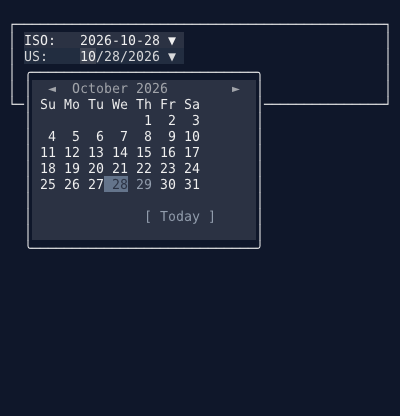
Overview#
The DatePickerControl displays an inline date editor with segmented month/day/year fields. Users can type digits directly into each segment, use arrow keys to increment/decrement values, or open a calendar popup overlay for visual date selection. The segment order and separator are derived from the configured CultureInfo.
See also: TimePickerControl
Quick Start#
var datePicker = Controls.DatePicker("Birthday:")
    .WithSelectedDate(new DateTime(2000, 1, 15))
    .OnSelectedDateChanged((s, date) =>
    {
        // date is DateTime?
    })
    .Build();

window.AddControl(datePicker);
Builder API#
Create a DatePickerBuilder through the Controls factory:
var builder = Controls.DatePicker("Select date:");
Value Methods#
.WithSelectedDate(DateTime? date)          // Set the initial date
.WithMinDate(DateTime? date)               // Set minimum allowed date
.WithMaxDate(DateTime? date)               // Set maximum allowed date
Format Methods#
.WithCulture(CultureInfo culture)          // Set locale for format and first day of week
.WithFormat(string format)                 // Override the date format pattern (e.g. "yyyy-MM-dd")
.WithFirstDayOfWeek(DayOfWeek day)         // Override the first day of the week in the calendar
Layout Methods#
.WithPrompt(string prompt)                 // Set the label text (default: "Date:")
.WithAlignment(HorizontalAlignment align)  // Horizontal alignment
.WithVerticalAlignment(VerticalAlignment)  // Vertical alignment
.WithMargin(int left, int top, int right, int bottom)
.WithMargin(int margin)                    // Uniform margin on all sides
.WithWidth(int width)                      // Fixed width
.Visible(bool visible)                     // Initial visibility
Identity Methods#
.WithName(string name)                     // Name for FindControl<T>() lookups
.WithTag(object tag)                       // Arbitrary user data
.WithStickyPosition(StickyPosition pos)    // Sticky positioning
.StickyTop()                               // Shorthand for StickyPosition.Top
.StickyBottom()                            // Shorthand for StickyPosition.Bottom
Event Methods#
.OnSelectedDateChanged(EventHandler<DateTime?> handler)
.OnSelectedDateChanged(WindowEventHandler<DateTime?> handler)  // includes Window reference
.OnGotFocus(EventHandler handler)
.OnGotFocus(WindowEventHandler<EventArgs> handler)
.OnLostFocus(EventHandler handler)
.OnLostFocus(WindowEventHandler<EventArgs> handler)
Building#
DatePickerControl control = builder.Build();

// Implicit conversion is also supported:
DatePickerControl control = Controls.DatePicker("Date:")
    .WithSelectedDate(DateTime.Today);
Properties#
| Property | Type | Description |
|---|---|---|
SelectedDate |
DateTime? |
The currently selected date. null means no date is set (displays today as placeholder). |
MinDate |
DateTime? |
Minimum selectable date. Dates before this are clamped and grayed out in the calendar. |
MaxDate |
DateTime? |
Maximum selectable date. Dates after this are clamped and grayed out in the calendar. |
Culture |
CultureInfo |
Locale controlling date format and first day of week. Defaults to CultureInfo.CurrentCulture. |
DateFormatOverride |
string? |
Overrides the short date pattern from the culture (e.g. "dd/MM/yyyy"). |
FirstDayOfWeekOverride |
DayOfWeek? |
Overrides the culture's first day of the week for the calendar grid. |
Prompt |
string |
Label text displayed before the date segments. |
IsEnabled |
bool |
Whether the control accepts input. |
IsCalendarOpen |
bool |
Read-only. Whether the calendar popup is currently visible. |
BackgroundColor |
Color |
Background color (unfocused). |
ForegroundColor |
Color |
Foreground color (unfocused). |
FocusedBackgroundColor |
Color |
Background color when focused. |
FocusedForegroundColor |
Color |
Foreground color when focused. |
SegmentBackgroundColor |
Color |
Background of the active date segment. |
SegmentForegroundColor |
Color |
Foreground of the active date segment. |
Events#
| Event | Signature | Description |
|---|---|---|
SelectedDateChanged |
EventHandler<DateTime?> |
Fires when the selected date changes. |
GotFocus |
EventHandler |
Fires when the control receives focus. |
LostFocus |
EventHandler |
Fires when the control loses focus (also closes the calendar). |
Keyboard Shortcuts#
Inline Mode (segments)#
| Key | Action |
|---|---|
| Left / Right | Move between date segments (month, day, year) |
| Tab / Shift+Tab | Move between segments (passes focus if at first/last segment) |
| Up | Increment the focused segment by 1 |
| Down | Decrement the focused segment by 1 |
| 0-9 | Type digits directly into the focused segment |
| Enter / Space | Open the calendar popup |
Calendar Popup Mode#
| Key | Action |
|---|---|
| Left / Right | Move highlight by one day |
| Up / Down | Move highlight by one week |
| Page Up | Previous month |
| Page Down | Next month |
| Ctrl+Page Up | Previous year |
| Ctrl+Page Down | Next year |
| Home | Jump to first day of the month |
| End | Jump to last day of the month |
| T | Jump to today |
| Enter / Space | Select the highlighted day and close the calendar |
| Escape | Close the calendar without changing the date |
Mouse Interaction#
- Click on a segment focuses that segment for editing
- Click on the
▼indicator toggles the calendar popup open/closed - Click a day in the calendar selects it and closes the popup
- Click
◄/►in the calendar header navigates months - Click
[ Today ]jumps to today and selects it - Mouse wheel on calendar scrolls months
Calendar Popup#
Pressing Enter or Space on the inline date, or clicking the ▼ indicator, opens a calendar overlay rendered through the portal system. Clicking on date segments focuses them for editing without opening the calendar. The calendar displays:
- A month/year header with navigation arrows
- Day-of-week column headers (locale-aware abbreviations)
- A grid of days with highlighting for today and the selected date
- Out-of-range days grayed out when
MinDate/MaxDateare set - A "Today" button to jump to the current date
The calendar supports both keyboard and mouse interaction. Clicking a day selects it and closes the popup. Clicking outside the calendar dismisses it.
Locale and CultureInfo#
The date format, separator character, and first day of week are all derived from the Culture property:
// US format: MM/dd/yyyy, week starts Sunday
Controls.DatePicker("Date:")
    .WithCulture(new CultureInfo("en-US"))

// German format: dd.MM.yyyy, week starts Monday
Controls.DatePicker("Datum:")
    .WithCulture(new CultureInfo("de-DE"))

// Japanese format: yyyy/MM/dd
Controls.DatePicker()
    .WithCulture(new CultureInfo("ja-JP"))

// ISO format override regardless of culture
Controls.DatePicker()
    .WithFormat("yyyy-MM-dd")
    .WithFirstDayOfWeek(DayOfWeek.Monday)
Theme Properties#
| Theme Property | Description | ClassicTheme Default |
|---|---|---|
DatePickerBackgroundColor |
Unfocused background | null (inherits from window) |
DatePickerForegroundColor |
Unfocused foreground | null (inherits from window) |
DatePickerFocusedBackgroundColor |
Focused background | Color.Blue |
DatePickerFocusedForegroundColor |
Focused foreground | Color.White |
DatePickerSegmentBackgroundColor |
Active segment background | Color.DarkBlue |
DatePickerSegmentForegroundColor |
Active segment foreground | Color.White |
DatePickerDisabledForegroundColor |
Disabled text | Color.Grey |
DatePickerCalendarTodayColor |
Today highlight in calendar | Color.Cyan1 |
DatePickerCalendarSelectedColor |
Selected day highlight | Color.Blue |
DatePickerCalendarHeaderColor |
Calendar header text | Color.Yellow |
Common Patterns#
Date Range Validation#
DatePickerControl? startPicker = null;
DatePickerControl? endPicker = null;

startPicker = Controls.DatePicker("From:")
    .WithSelectedDate(DateTime.Today)
    .OnSelectedDateChanged((s, date) =>
    {
        if (endPicker != null && date.HasValue)
            endPicker.MinDate = date;
    })
    .Build();

endPicker = Controls.DatePicker("To:")
    .WithMinDate(DateTime.Today)
    .OnSelectedDateChanged((s, date) =>
    {
        if (startPicker != null && date.HasValue)
            startPicker.MaxDate = date;
    })
    .Build();

window.AddControl(startPicker);
window.AddControl(endPicker);
Combined Date and Time Form#
window.AddControl(Controls.DatePicker("Date:")
    .WithName("meetingDate")
    .WithMinDate(DateTime.Today)
    .Build());

window.AddControl(Controls.TimePicker("Start:")
    .WithName("startTime")
    .With24HourFormat()
    .WithSelectedTime(new TimeSpan(9, 0, 0))
    .Build());

window.AddControl(Controls.Button("Schedule")
    .OnClick((s, e, w) =>
    {
        var date = w.FindControl<DatePickerControl>("meetingDate")?.SelectedDate;
        var start = w.FindControl<TimePickerControl>("startTime")?.SelectedTime;
        if (date.HasValue && start.HasValue)
        {
            var dateTime = date.Value + start.Value;
            // Process...
        }
    })
    .Build());